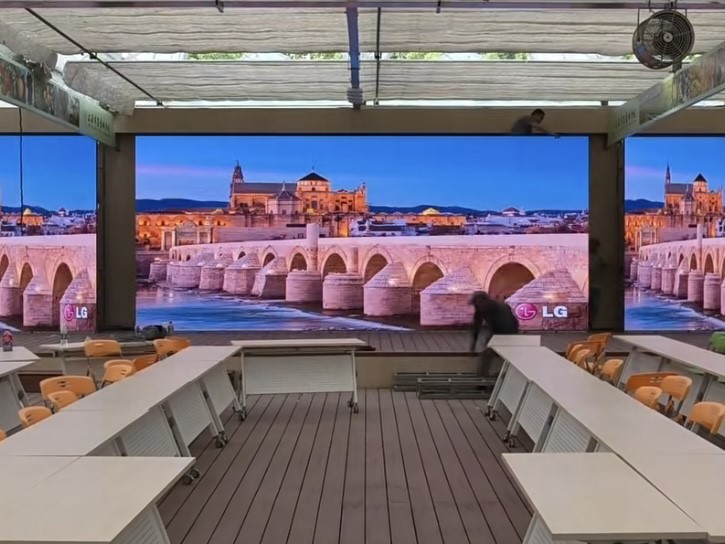
How to Set Up a Full-Screen LED Display in an Exhibition Hall or Conference Room
The core of setting up a full-screen LED display in an exhibition hall or conference room lies in adjusting the match between the signal source resolution and the screen's physical resolution using a video processor or control software. It's crucial to adhere to proper operating procedures to avoid equipment damage. Here are the specific steps and precautions:
I. Core Method for Setting Up Full-Screen: Using a Video Processor
Principle: The physical resolution of an LED display is fixed (e.g., a P2.5 screen resolution of 1920×1080). If the computer's signal source resolution is inconsistent with the screen's (e.g., the computer's resolution is 2560×1440), direct output will result in the image not displaying in full screen. A video processor can scale, crop, or convert the signal source to adapt it to the screen's resolution.
Operation Steps:
Connect the computer to the video processor using an HDMI/DVI cable, and connect the video processor's output to the LED screen.
In the video processor's settings interface, select "Scaling Mode" as "Full Screen" or "Adaptive," adjusting the output resolution to match the screen's physical resolution.
Enable the "Fill" function (supported by some processors) to ensure there are no black borders on the signal source image.
Cost: Video processor prices vary depending on the model, with entry-level devices costing approximately 500-2000 RMB, sufficient for basic full-screen requirements.
Figure: Typical topology of a video processor connecting a computer and an LED screen.
Adjustment via control software.
Applicable Scenarios: If the LED screen supports software control (e.g., Nova, Carlette), resolution matching can be directly set in the software.
Operation Steps:
Open the control software and enter the "Screen Settings" or "Resolution Configuration" interface.
Select the option that matches the screen's physical resolution (e.g., 1920×1080) and save the settings.
In the computer's display settings, adjust the output resolution to match the screen resolution (graphics card support required).
Limitations: This method requires the computer's graphics card to support the target resolution, and the signal transmission cable (e.g., HDMI 2.0) to meet bandwidth requirements.
II. Key Precautions
Power-On/Off Sequence
Screen Power On: Power on the computer first, then power on the LED screen (to avoid high-brightness spots burning out the lamps).
Screen Power Off: Power off the LED screen first, then power off the computer (to prevent high-brightness spots on the screen). Interval Time: The screen should be switched on and off at intervals greater than 5 minutes to allow for power stability.
Avoid Starting with a Full White Screen
A full white screen results in a large inrush current, potentially damaging the power supply or backlight. It is recommended to display a black or low-brightness screen during startup and switch content only after the system has stabilized.
Power Cord Connection Standards
Ensure that the neutral (N) and live (L) wires of the power cords for computers, control cards, and other devices are not reversed to prevent the casing from becoming live and posing a safety hazard.
After connecting peripherals, test the casing for liveness (e.g., using a test pen).
Resolution Matching Principles
If the signal source resolution is higher than the screen's physical resolution (e.g., a 4K signal input to a P2.5 screen), the image must be scaled using a video processor or software; otherwise, only a portion will be displayed.
If the signal source resolution is lower than the screen's physical resolution, the image may be stretched and distorted. The "Maintain Aspect Ratio" function must be disabled in the processor (select according to needs).
III. Common Problem Solutions
* Black Borders on Screen
Cause: The signal source resolution is incompatible with the screen, or the video processor is not enabled for "Full Screen Fill".
Solution: Enable "Full Screen Fill" in the processor settings or adjust the scaling to 100%.
* Screen Tearing or Stuttering
Cause: Insufficient signal transmission bandwidth (e.g., using HDMI 1.4 to transmit 4K signals), or insufficient computer graphics card performance.
Solution: Upgrade to an HDMI 2.0/DP 1.4 cable, or reduce the signal source resolution (e.g., from 4K to 1080P).
Partial Area Not Displayed
Cause: Screen module malfunction, or loose connection between the control card and the module.
Solution: Check if the module cable is securely connected, or contact the manufacturer to replace the faulty module.
IV. Purchasing Recommendations (Avoiding Common Misconceptions)
Don't Focus Solely on Price
Low-priced products may use inferior LEDs or driver ICs, resulting in uneven brightness and shortened lifespan. We recommend choosing products with moderate brightness (800-1500 cd/㎡ for indoor screens) and consistent color temperature (around 6500K).
Confirm Model Authenticity
The same "P4" model may have different pixel pitches (e.g., P4.0 vs. P4.81). A larger pixel pitch indicates lower resolution. Request specific pixel pitch parameters from the manufacturer to avoid being sold inferior products.
Take a Reasonable View of Technical Parameters
Higher brightness is not always better: excessively bright indoor screens can be glaring and accelerate LED chip decay; outdoor screens need to be adjusted according to ambient light (e.g., ≥5000 cd/㎡ under direct sunlight).
A refresh rate ≥3840Hz is sufficient for photography needs; excessively high parameters may increase costs.
Allow Sufficient Production and Testing Time
LED screens require a 72-hour continuous aging test. Short lead times may lead to color differences or increased failure rates. We recommend allowing 5-7 days for production and testing after placing your order.
By matching resolution with a video processor, standardizing operating procedures, and avoiding purchasing pitfalls, the full-screen display requirements of LED displays in exhibition halls and conference rooms can be efficiently met.