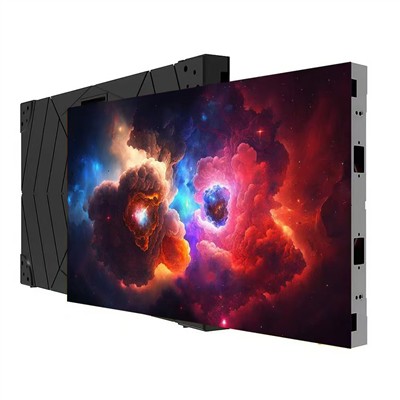
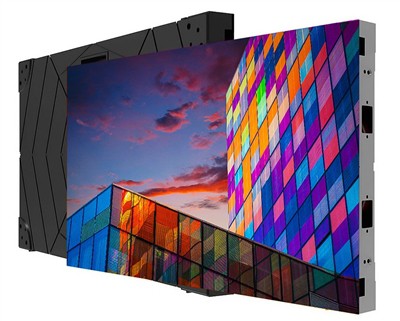
Calibrating the screen size of a flexible LED display requires a systematic operation process. The specific steps and precautions are as follows:
I. Preparation
Understanding the Display Specifications
Refer to the technical manual or specification sheet to clarify key parameters such as the display's resolution (e.g., 1920×1080), pixel pitch (e.g., P2.5), and physical dimensions (e.g., 5 meters long, 3 meters high).
Confirm the display's driving method (e.g., asynchronous control, synchronous control) and interface type (e.g., HDMI, DVI) to select a suitable calibration tool.
Preparing Calibration Tools
Software Tools: Use the manufacturer's dedicated control software (e.g., NovaLCT, LedMaster) or third-party point-to-point calibration software (e.g., CalMAN).
Test Materials: Prepare standard test images (e.g., grayscale images, color bars) or videos (e.g., full-screen dynamic images).
Measuring Tools: Measuring tape or laser rangefinder (for verifying physical dimensions), photometer or colorimeter (for data acquisition during point-to-point calibration).
Setting the Resolution
In the control software, adjust the resolution to match the physical pixel count of the display screen. For example, if the display screen's physical resolution is 3840×2160, it must be set to the same value in the software.
Note: Incorrect resolution settings will cause image stretching or compression; repeated adjustments are necessary until the image aspect ratio is correct.
Adjusting the Display Area
Adjust the width, height, and position parameters of the display area through the software interface to ensure that the content completely covers the screen without overflow or black borders.
Operation Example: Locate the "Display Area Settings" option in the software, drag the boundary lines or enter values (e.g., width = 5000mm, height = 3000mm) for calibration.
Point-by-Point Calibration (Critical Step)
Data Acquisition: Use a photometer or colorimeter to scan the display screen point by point, recording the raw brightness and chromaticity data of each pixel.
Generate Calibration Data: Analyze the acquired data using the software to calculate the compensation value for each pixel (e.g., increase brightness by 10%, adjust color temperature to 6500K).
Apply Calibration Data: Write the compensation values to the display's receiver or control card to achieve pixel-level parameter correction.
Verify Results: Play the test image to check if issues such as uneven brightness and color deviation have been eliminated.
Check Calibration Results
Observe image clarity and color uniformity to confirm the absence of mosaic, dead pixels, or flickering.
Test Method: Play full white, full black, and red-green-blue monochrome images to check the consistency across different screen areas.
Save Calibration Settings
Save the calibrated parameters (such as resolution, display area, and pixel-by-pixel compensation values) to the control software or display memory for later retrieval.
III. Precautions
Environmental Requirements
Light Conditions: Avoid direct sunlight or strong light sources. It is recommended to operate in a semi-dark indoor environment.
Stability: Maintain an environment free from vibration and noise during calibration to prevent measurement data deviation.
Professional Support
If you lack experience, it is recommended to contact the manufacturer's technical support or a professional calibration team to avoid damage to the display due to improper operation.
Regular Maintenance
Perform routine checks every 3-6 months, including checking for loose connections, power stability, and pixel degradation.
Replace aging components (such as LED beads and driver ICs) promptly to prevent hardware failures from affecting calibration results.
Safe Operation
Electrical Safety: Ensure the display screen is powered off before making physical connections or replacing components to avoid the risk of electric shock.
Environmental Safety: Do not operate in high-temperature, humid, or corrosive environments to prevent short circuits or deformation of the display screen.
IV. Common Problem Handling
Problem 1: Localized image distortion remains after calibration. Solution: Check the flatness of the display screen mounting structure, adjust the tension at the module splicing points, and re-perform geometric calibration.
Problem 2: Color deviation is not completely eliminated after point-by-point calibration. Solution: Confirm the photometer calibration status, re-collect data, and adjust the compensation algorithm parameters.
By following these steps, the dimensional deviation problem of flexible LED displays can be systematically resolved, ensuring long-term stable high-quality image display. In practice, parameters need to be adjusted flexibly according to the display screen model (such as P1.5, P3, etc.) and the installation scenario (such as curved screen, cylindrical screen).