How to Achieve Wireless Screen Projection for Conference Room LED Screens?
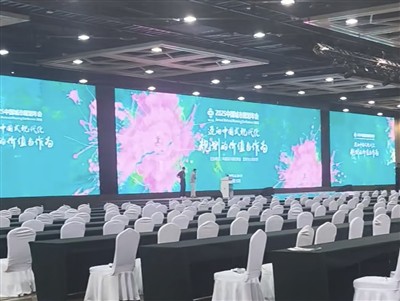
Before introducing the wireless projection solution, let's look at two comparison images: Image 1 shows a traditional conference scenario where signal cables and adapters are pre-installed on the left side of the podium, resulting in messy equipment connections; Image 2 shows a scenario using wireless projection, where the podium requires no signal cables or adapters, and the laptop screen is directly projected wirelessly to the front LED screen. The following video demonstration will visually illustrate the convenience of wireless projection.
The video shows that simply connecting a laptop to the projection device wirelessly projects both video and audio to the LED screen. Speakers can even move freely, as the wireless projection range is wide, even offstage. In the conference rooms we visited, we observed an interesting phenomenon: in traditional conferences, speakers need to copy their PowerPoint presentations to a desktop computer in the server room, and a dedicated person manually controls the presentation, resulting in a poor user experience. In some cases, signal cables are run from the server room to the podium, but when the speaker moves, the fixed cable makes operation inconvenient; not to mention the inconvenience of attendees projecting their phones or tablets onto the large screen. Are you curious about how to wirelessly project your laptop screen to an LED screen? We'll demonstrate this for Windows and Mac laptops. Windows laptops use the projection button with USB, Type-C, or HDMI ports, while Mac laptops use the Type-C projection button. No software installation is required, and there are no model restrictions for LED screens. A simple press of the button transmits both video and audio simultaneously.
When choosing a projection device with different interfaces, Windows laptops often use USB, but foreign companies may be concerned about confidentiality, making HDMI projection devices more suitable. Mac laptops since 2016 have mostly used Type-C ports, making Type-C projection buttons a perfect fit. For older Mac laptops or USB devices, USB projection buttons are a good option with excellent compatibility.
When placing a lectern next to the LED screen in a conference room, simply select the appropriate laptop interface based on the environment, place the projection button on the lectern, and the speaker can project the screen upon going on stage. Deko Wireless Projection Solution takes into account the diversity of laptop interfaces, making it suitable for various types of laptops.
We support a PPT presenter mode, allowing presenters to view handwritten notes or annotations, while attendees only see the PPT content. Tablet projection is also supported, enabling wireless projection from iPads or Android tablets to a larger screen while maintaining a network connection. The Dekker wireless projection box is compatible with laptops, tablets, and mobile phones, using a transmitter and receiver for wireless signal transmission.
Dekker's wireless projection solution is suitable for enterprises, government agencies, and university multimedia classrooms, providing users with a smart, convenient, and efficient projection experience. It is widely used, with customers throughout China. If you are interested in learning more, please visit the Dekker Commercial website or contact us for consultation.