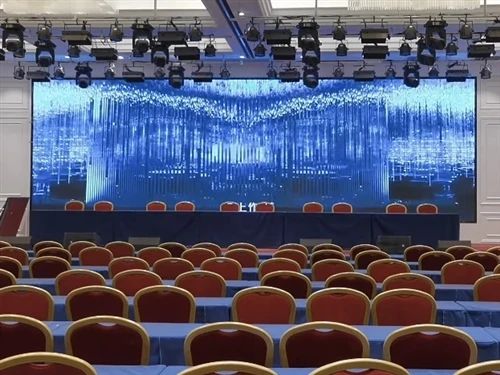
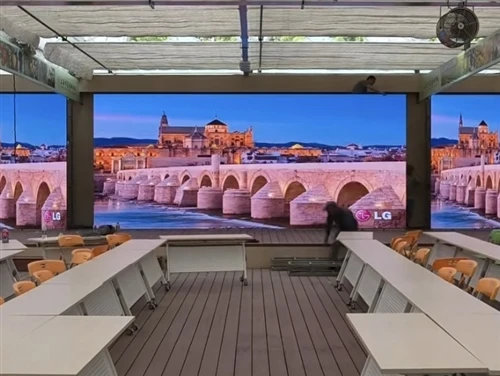
The method for turning on the large display screen in the conference room depends on the equipment type and conference room configuration. The following are common operating procedures, but please refer to the actual equipment for specific instructions:
I. Operation Classified by Equipment Type
1. Professional Spliced Screens/LED Large Screens
• First, turn on the controller/matrix: This is usually located in the conference room's low-voltage cabinet. Find the power switch for the corresponding spliced screen (some require pressing and holding for 3-5 seconds) and confirm that the indicator light is on.
• Then, start the display unit: If it's a single screen, press the power button on the screen bezel; if it's a multi-screen splice, you need to click the "Power On" button on the computer using the accompanying software (such as NovaStar, Linsn).
2. Smart Conference Tablets (such as MAXHUB, Huawei IdeaHub)
• Lightly touch the power button at the bottom/side of the screen (usually a circle or power icon), or press the "Power" button on the remote control.
• Some models support voice activation (e.g., "Hello, XX, turn on"), which needs to be enabled in the settings beforehand.
II. Auxiliary Checks and Connections
1. Confirm signal source switching:
• Press the "Signal Source" button on the remote control and select the connected device (e.g., HDMI1 corresponds to a laptop, DP corresponds to a video matrix).
• If using a computer for screen mirroring, you need to connect via HDMI/DP cable first, then press "Windows + P" or "Mac + Command + F1" to switch the display mode.
2. Troubleshoot common problems:
• If there is no picture, check if the power outlet is powered, if the signal cable is loose, or try restarting the controller.
III. Special Scenarios
1. Some corporate conference rooms require unified control through a central control system (such as Crestron): Find the "Display Screen" module on the wall-mounted touch panel and click the "Power On" button.
2. For remote control, you need to log in to the enterprise management platform (such as the Huawei Cloud Meeting management backend), select the corresponding conference room equipment, and click "Power On".